⚠️If you encounter an execution problem (blue Windows window), please refer to the FAQ.⚠️
1. Brief Description
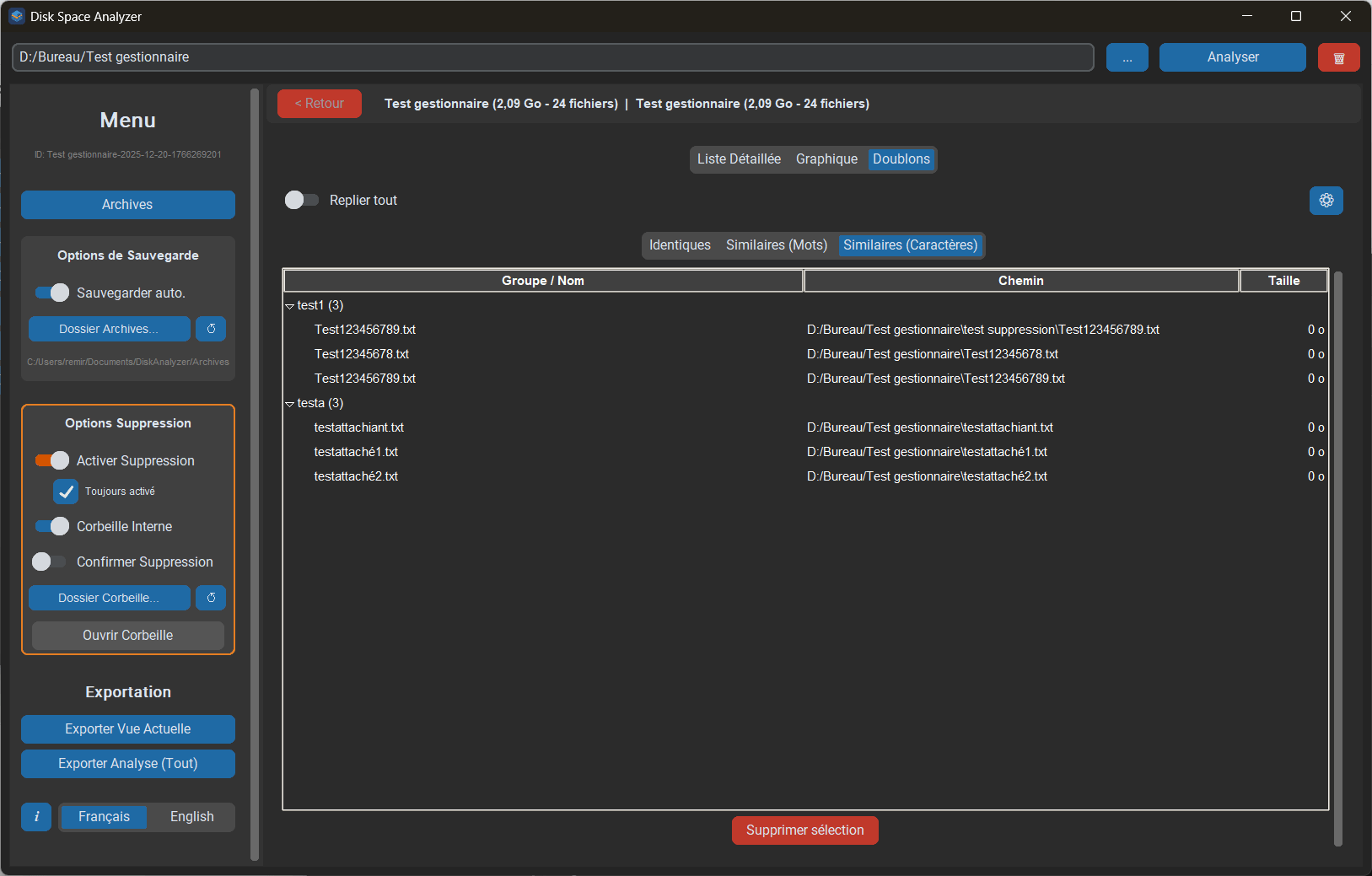
Disk Space Analyzer is a powerful and modern utility designed to visualize, analyze, and clean your computer's storage space. Developed in Python with a sleek Dark Mode interface, it allows you to quickly identify large folders, track down duplicates (identical or similar), and manage your files with a high level of security thanks to an integrated internal recycle bin.
Whether you are using a standard screen or high definition (4K), the interface adapts dynamically to offer optimal readability.
2. Detailed Features
🔍 Analysis and Visualization
- Ultra-Fast Scan: Recursive analysis of folders and entire drives.
- Intuitive Navigation: Clearly displays the current path (e.g.,
[D:] StorageorFolder\Subfolder). - Three Main Views:
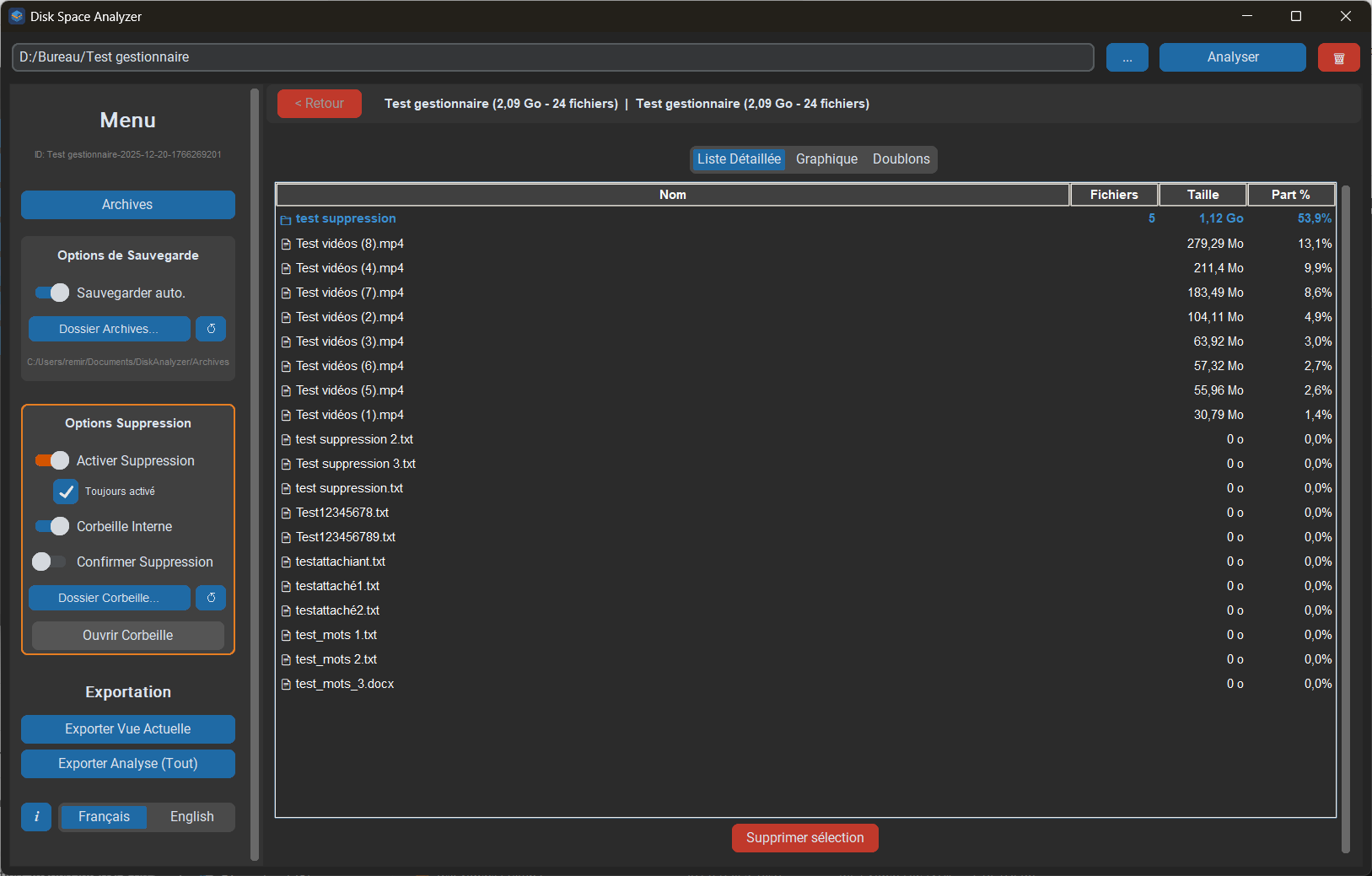
- Detailed List: A hierarchical view with icons, size, file count, and usage percentage.
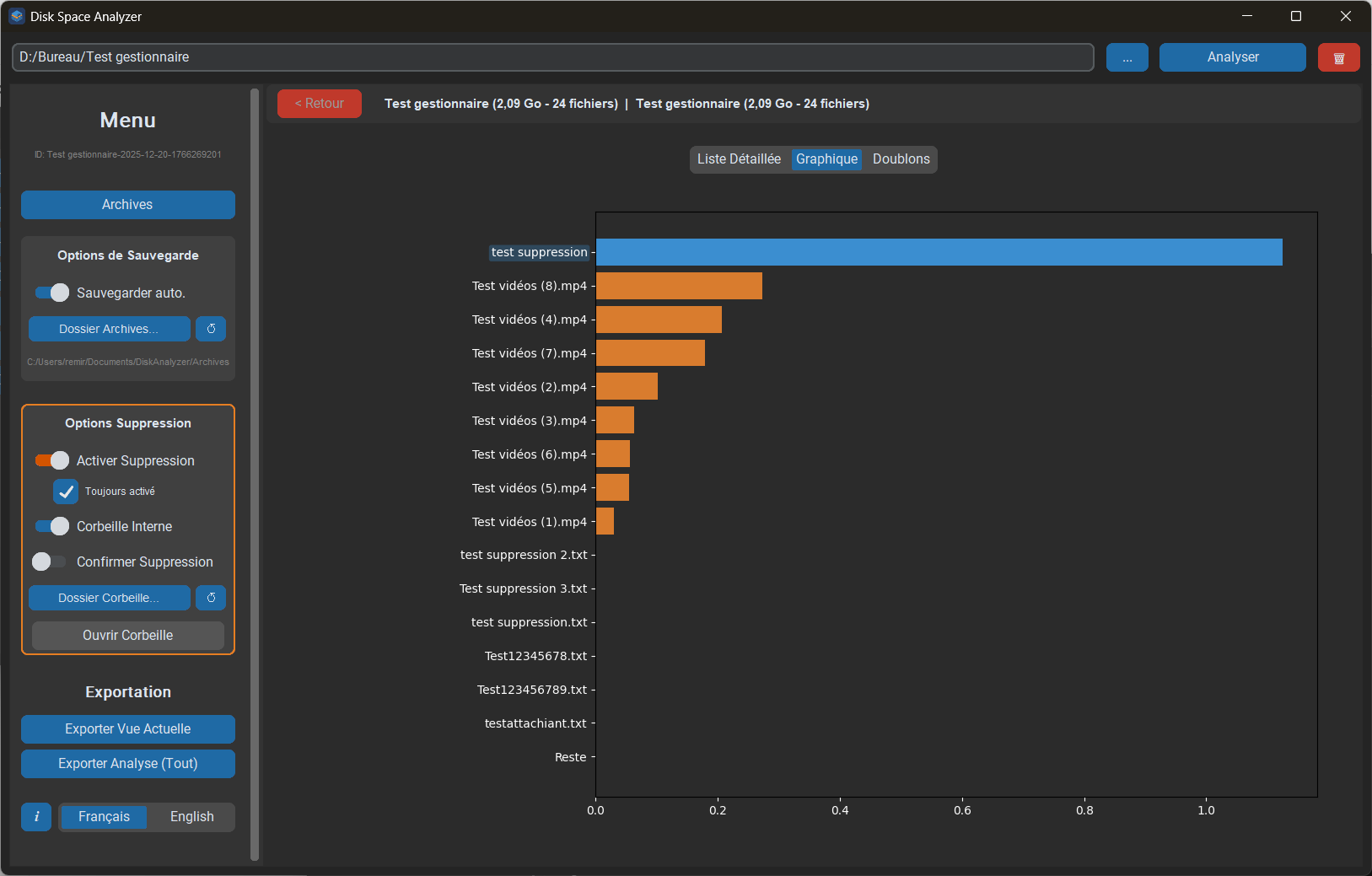
- Chart: An interactive bar chart displaying the “Top 15” largest items + the “Rest”.
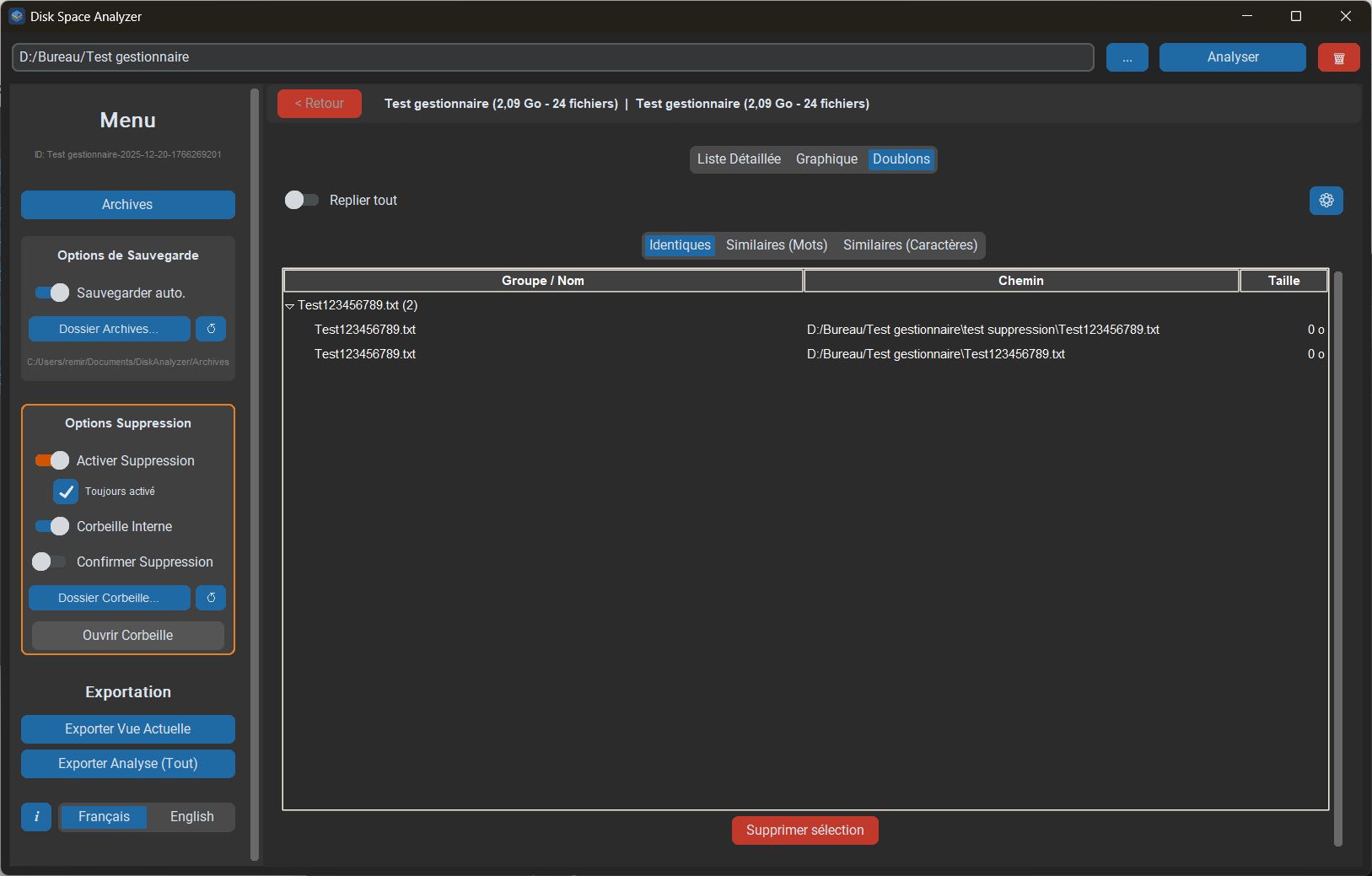
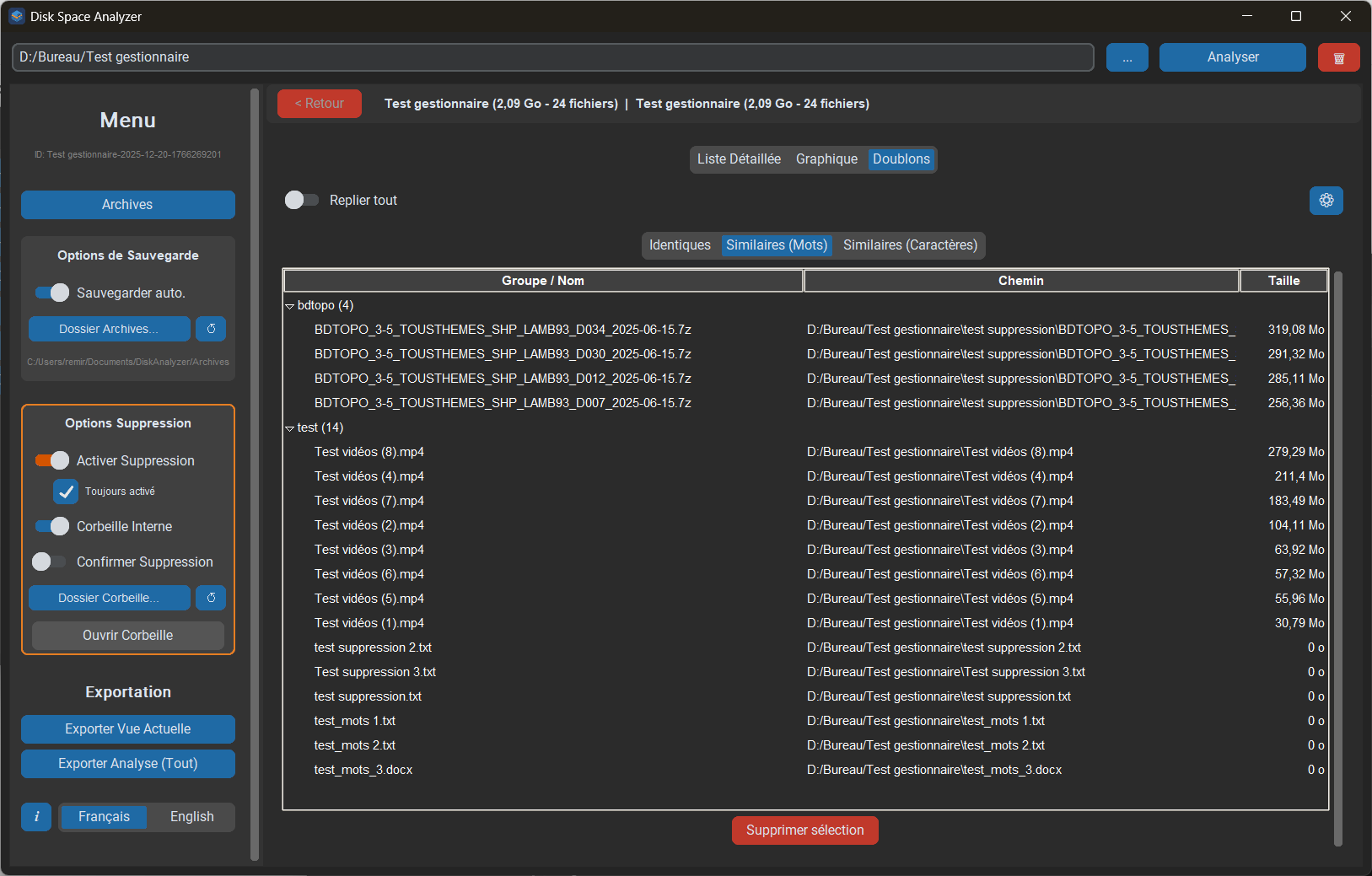
- Duplicates: An advanced search tool sorted by categories.
👯 Advanced Duplicate Management
The software offers a configurable three-level duplicate search engine:
- Identical: Files having exactly the same size and name.
- Similar (Words): Groups files sharing the same first words (based on defined separators like
"_","-"," "). Example: "Vacation_01.jpg" and "Vacation_02.jpg". - Similar (Characters): Groups files starting with the same characters (for files without separators). Example: "FinalProjectv1" and "FinalProjectv2".
Note: The lists are smart and exclusive (a file detected in “Words” will not clutter the “Characters” list).
🛡️ Security and Deletion
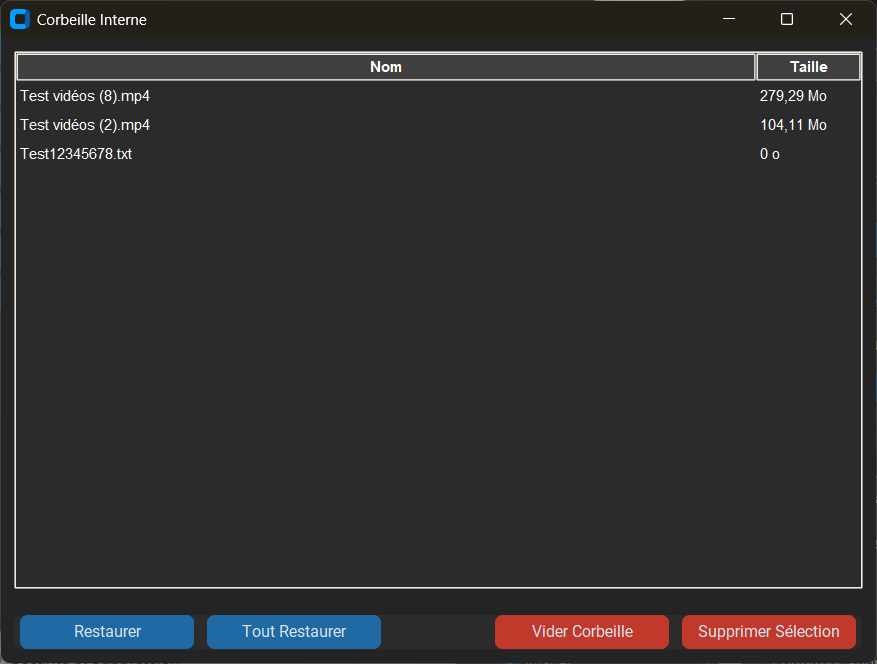
- Internal Recycle Bin (Buffer): An extra layer of security that moves files to a software-specific
Trashfolder before permanent deletion. - Windows Recycle Bin: Ability to send directly to the system recycle bin.
- Visual Feedback: Deleted files do not disappear suddenly; they instantly become grayed out in all tabs to indicate their status, allowing for easy restoration before refreshing.
- Protection: Options allow you to totally disable deletion or require systematic confirmation.
💾 Archiving and Export
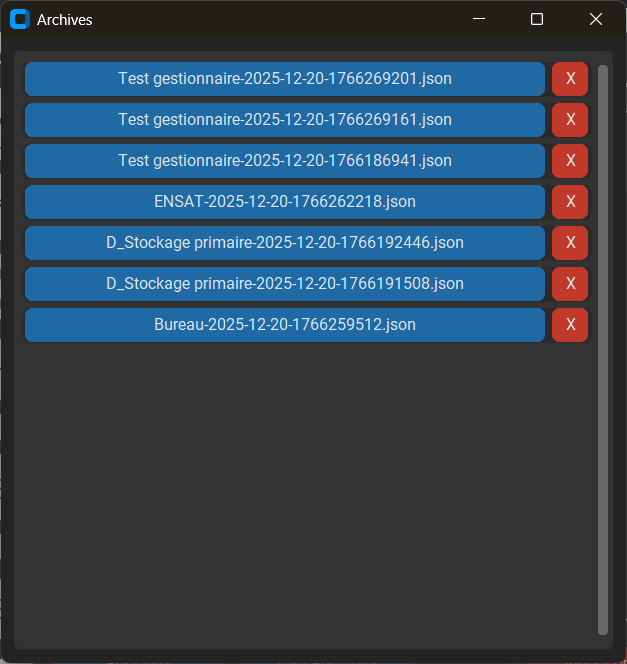
- Automatic Backup: Each analysis can be archived (JSON format) to be consulted later without rescanning the drive.
- CSV Export: Export data from the current view or the complete analysis to an Excel/CSV file.
🌍 Internationalization & Ergonomics
- Bilingual: Instant switch between French and English without restarting (the interface remains at the same state).
- Persistence: The software remembers your preferences (paths, sorting options, duplicate separators) and the active tab.
3. Command and Shortcut Guide
To use the software to its full potential, here is the list of possible keyboard and mouse interactions.
🖱️ Mouse
- Left Double-Click: Enter a folder (Navigation).
- Right Click: Open the context menu (Open, Show in Explorer, Delete).
- Click on Chart: Navigate into the clicked folder.
⌨️ Keyboard (Navigation & Actions)
| Key | Action | Contexte |
| Up / Down | Navigate through the list. If nothing is selected, selects the first/last item. | List / Duplicates |
| Home | Go to the very top of the list. | List / Duplicates |
| End | Go to the very bottom of the list. | List / Duplicates |
| Enter | Enter the selected folder (go down one level). | List |
| Backspace | Remonter Go up to the parent folder (or close an open context menu). | Global |
| Delete | Delete the selected item (with confirmation request). | List / Duplicates |
| App | Open the context menu on the selected item. | List / Chart |
| Left / Right | Switch main tab (List Chart Duplicates). | Global |
⚙️ Specific Features
Button " 🗑 " (Reset UI): Clears the interface and resets everything to zero for a fresh, clean analysis.
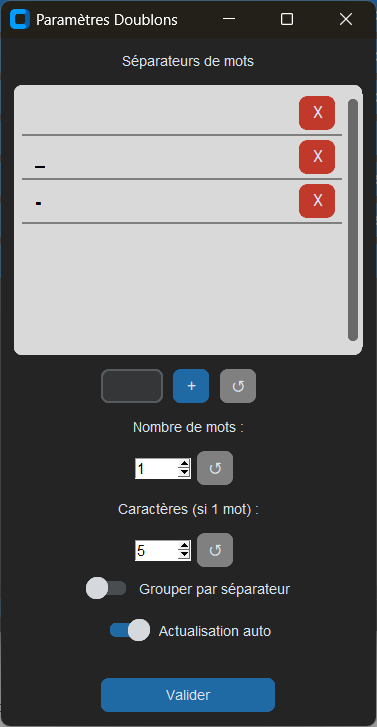
Button " ⚙️ " (Duplicates): Opens fine-tuning settings for detection (number of words, separators, auto-refresh).
Switch "Collapse all" (Duplicates): Allows you to close/open all groups of duplicates at once for better readability.
Managers (Windows)
Archives: Allows you to load an old analysis or delete an archive.
Internal Recycle Bin: Allows you to Restore (the file becomes white again in the list) or Empty permanently.